
Live & EventsLive & Events overviewLive StreamingBrowser StudioSimulated LiveVenue ConnectivityStream MonitoringContent Delivery NetworkMobile StreamingSatellite Rebroadcast
LanguagesLanguages overviewOmniTranslate LiveLanguages overviewCaptions & TranscriptsLive Event LanguagesMultilingual On-Demand & CoursesField & Remote ReportsMultilingual Discussion RoomsMultilingual AnnouncementsVoice-Matched DubbingDigital PresenterGlossary & Quality Review
Create & EditCreate & Edit overviewCreate & Edit overviewSmart ClipsRecap StudioChapters & Companion Content
Library & ScreensLibrary & Screens overviewLibrary & Screens overviewEvery ScreenVideo on DemandCollections & CoursesArchive MigrationConnected TV & IPTVBranded Mobile AppsWeb Portal & PlayerSocial ReachAudio & PodcastsCast to ScreenDone-for-You Apps
24/7 TV24/7 TV overview24/7 TV NetworkPlanBuildRunGrowWho it is forChannel examplesTalk to the teamTV Carriage & Partner Delivery
RadioRadio overviewRadio StreamingMusic Licensing & RoyaltiesAudio & Podcasts
Engage & MonetizeEngage & Monetize overviewEngage & Monetize overviewAdvertising & SponsorshipPayments, Fundraising & PaywallsLive Chat & Q&AViewer Support DeskCommunities & GroupsEvents & RegistrationCrew SchedulingAttendee Check-in
InsightsInsights overviewInsights & Control overviewAudience AnalyticsAccess & Security
SolutionsSolutions overviewSolutions overviewGovernment & Public SectorEntertainment & MediaBusiness & EnterpriseAssociations & NonprofitsSportsNews & BroadcastEducation & EventsHouses of WorshipBeyond Social-Only StreamingSwitching Streaming Platforms
AI DevelopmentAI Development overviewReadiness & RoadmapApplications Built to OrderGenerative Content StudioWorkflow AgentsVideo & Audio UnderstandingSpeech & Language SystemsData FoundationsModel Operations & OversightArchive Search EngineHighlight FinderService AssistantRecords IntelligenceAudience ForecastingReview & Compliance ChecksAI Development overviewGovernment & Public SectorMedia & EntertainmentSports & Live EventsBusiness & EnterpriseEducation & TrainingAssociations & NonprofitsNews & BroadcastAI InsightsHow we workResponsible AI
General AIGeneral AI overviewAI Strategy & AdvisoryCustom AI ApplicationsGenerative AI & Language ModelsAI Agents & AssistantsBack-Office AutomationMachine Learning & ForecastingImage Recognition & InspectionLanguage & Document IntelligenceData Pipelines & AI ReadinessConnecting AI to Your SystemsProduction Rollout & SupportAI Security & GovernanceAI for Your IndustryWays to Work With Us
CompanyCompany overviewWhy Omni Media CastAboutPlans & ways to startResourcesCompare approachesFAQPlain-Word GlossaryTrust & SecuritySupportContact
24/7 TV
  1. 1Plan
  2. 2Build
  3. 3Run
  4. 4Grow
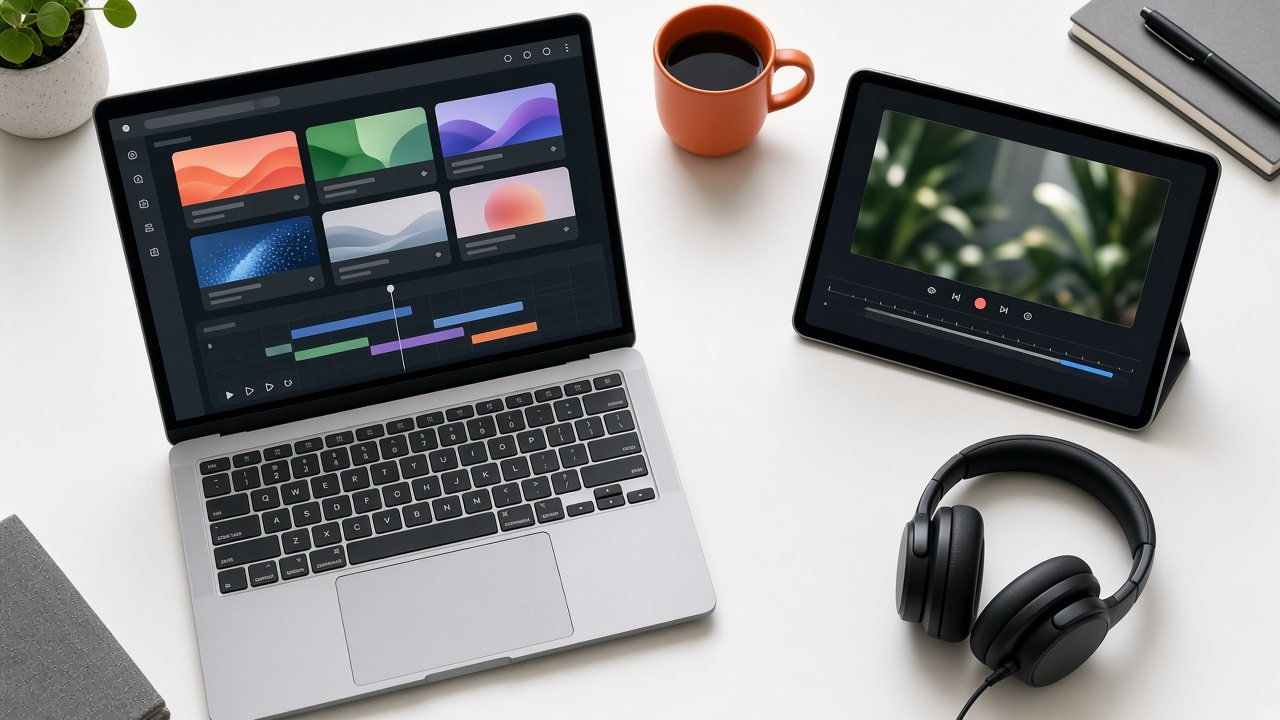
Top-down view of a laptop showing a channel dashboard and a tablet with a live preview on a bright desk
Run · Workspace

One workspace for the whole channel

Omni TV Studio brings intake, library, line-up, run control, branding and output watch into a single browser tab, while our team looks after the infrastructure behind it.

  • You will leave with
  • Every channel in one view
  • Each stage one click from the next
  • Nothing to install
01

One browser tab

Running a channel usually means stitching together a file transfer tool, a library, a scheduler, a graphics engine, a playout server and a streaming service. Omni TV Studio brings those stages into one workspace so the people who know the programming can see the whole picture.

A typical channel starts as a folder of files and a rough idea of the week. In the workspace those become a branded, scheduled stream that viewers can open on the devices they already own.

02

What is inside

  • Channel overview

    Every channel in your account, what it is playing now and whether anything needs attention.

  • Intake and library

    Upload, check, search and preview. See Content pipeline.

  • Line-up

    Days and seasons with templates and reserved live slots. See Line-ups.

  • Run control

    Unattended running with fallbacks and alerts. See Omni Auto-Run.

  • Branding

    Logos, banners and sponsor graphics once for every program. See Brand overlay.

  • Output watch

    Look at what your viewers are seeing, from any location.

03

At a glance

How you work
Entirely in a web browser. Nothing to install and no playback hardware to house.
Who it suits
Small teams and large media groups, from a single volunteer-run channel to many channels in one account.
Delivery
Adaptive streaming to web, mobile, Roku, IPTV and connected-TV viewers.
Ads
Break placement and sponsor slots through Omni Break Planner.
Support
Support by phone and email.
04

Questions to settle

Can I run the channel from a phone or tablet?

Viewers can watch on mobile devices. The operator tools are designed for a desktop or laptop browser, which gives room for the timeline and the monitoring views.

Can my own systems feed the channel?

The channel accepts files and live feeds today. If you plan to connect a scheduling, newsroom or asset system, tell us in your channel sketch and we will map out how it would fit.