

General AI Development
Back-Office Automation
Take repeated, rule-bound office tasks off people's desks, and keep a person in charge of the exceptions.
The challenge
Why this matters
Invoices, requests, onboarding forms and status reports follow the same steps every time, and people still push them along by hand.
What it is
Back-Office Automation in plain words
We map a process step by step, decide which steps can run automatically and build the workflow: software robots for screens that have no interface, direct system connections where they exist, and AI for the steps that need reading or judgment.
Exceptions go to a work queue with the full case history, and every automated step is logged.
Benefits
What you get
Process mapped first
We document the steps before anything is automated.
Right tool for each step
Rules, connectors or AI, chosen step by step.
An exception queue
Unusual cases reach a person with context.
An audit trail
Each automated action is logged.
How it works
From first call to first result
Map
Walk the process with the people who run it.
Select
Choose the steps worth automating.
Assemble
Create the workflow, rules and queues.
Run
Launch, measure and adjust.
Details
What is included
Automation
- Rule-based steps
- Screen-level software robots
- System connectors
AI steps
- Document reading
- Classification
- Drafting
Control
- Exception queues
- Approvals
- Run logs
Illustrative scenario
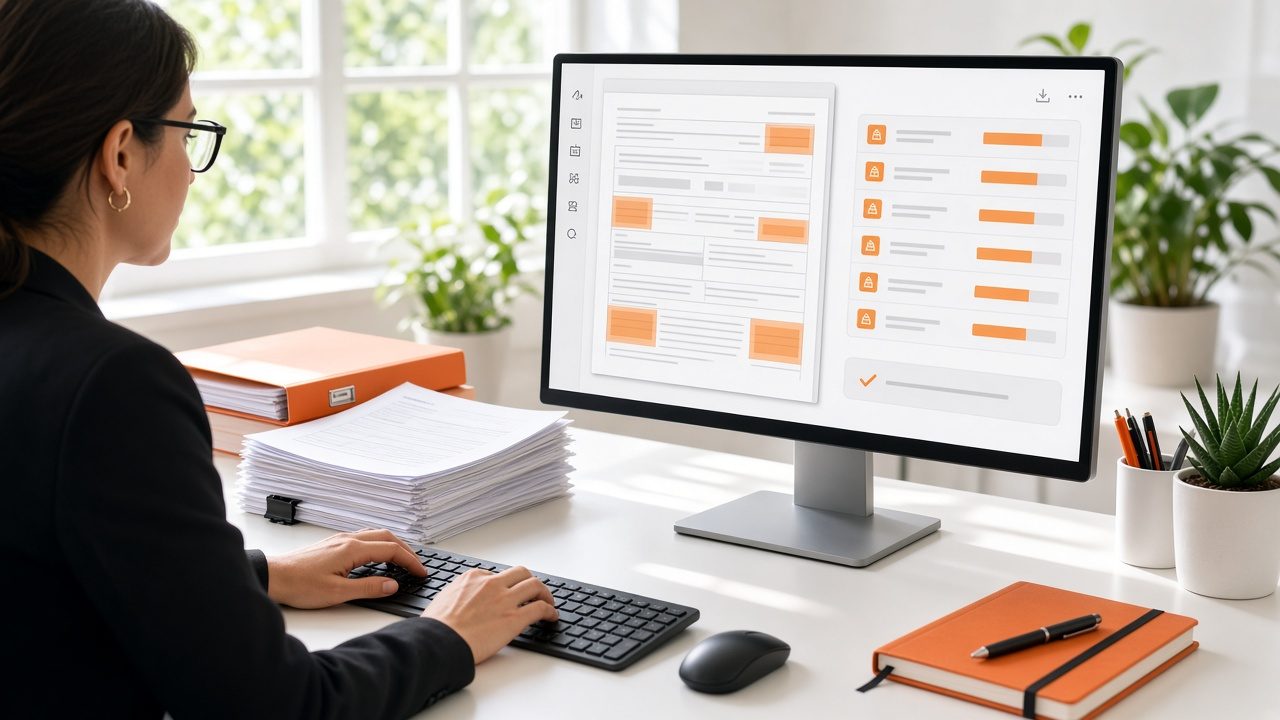
A finance team routes supplier invoices. The system reads each one, matches it to the purchase order and sends only the mismatches to an accountant.
Start with one process
Pick a single, well-understood process, automate it carefully and let the results guide the next one.
Questions
Common questions
Which processes suit automation?
Frequent, rule-based and well-documented ones. We help you rank them.
Will this replace our staff?
The aim is to remove repetitive steps so people can spend time on work that needs judgment. We design the workflow with your team.
What happens when a process changes?
Rules and connectors are updated under the plan described in Production Rollout & Support.
Related
Works well with
Language & Document Intelligence
Read contracts, forms, emails and reports and turn them into organized, searchable data.
Learn more →
AI Agents & Assistants
Chat assistants and task-doing agents that answer questions and hand off to staff when a person should decide.
Learn more →
Connecting AI to Your Systems
Add AI features to the software and workflows you already run, without replacing them.
Learn more →Ready for Back-Office Automation?
Describe what you need and we will reply with a clear plan.