
Live & EventsLive & Events overviewLive StreamingBrowser StudioSimulated LiveVenue ConnectivityStream MonitoringContent Delivery NetworkMobile StreamingSatellite Rebroadcast
LanguagesLanguages overviewOmniTranslate LiveLanguages overviewCaptions & TranscriptsLive Event LanguagesMultilingual On-Demand & CoursesField & Remote ReportsMultilingual Discussion RoomsMultilingual AnnouncementsVoice-Matched DubbingDigital PresenterGlossary & Quality Review
Create & EditCreate & Edit overviewCreate & Edit overviewSmart ClipsRecap StudioChapters & Companion Content
Library & ScreensLibrary & Screens overviewLibrary & Screens overviewEvery ScreenVideo on DemandCollections & CoursesArchive MigrationConnected TV & IPTVBranded Mobile AppsWeb Portal & PlayerSocial ReachAudio & PodcastsCast to ScreenDone-for-You Apps
24/7 TV24/7 TV overview24/7 TV NetworkPlanBuildRunGrowWho it is forChannel examplesTalk to the teamTV Carriage & Partner Delivery
RadioRadio overviewRadio StreamingMusic Licensing & RoyaltiesAudio & Podcasts
Engage & MonetizeEngage & Monetize overviewEngage & Monetize overviewAdvertising & SponsorshipPayments, Fundraising & PaywallsLive Chat & Q&AViewer Support DeskCommunities & GroupsEvents & RegistrationCrew SchedulingAttendee Check-in
InsightsInsights overviewInsights & Control overviewAudience AnalyticsAccess & Security
SolutionsSolutions overviewSolutions overviewGovernment & Public SectorEntertainment & MediaBusiness & EnterpriseAssociations & NonprofitsSportsNews & BroadcastEducation & EventsHouses of WorshipBeyond Social-Only StreamingSwitching Streaming Platforms
AI DevelopmentAI Development overviewReadiness & RoadmapApplications Built to OrderGenerative Content StudioWorkflow AgentsVideo & Audio UnderstandingSpeech & Language SystemsData FoundationsModel Operations & OversightArchive Search EngineHighlight FinderService AssistantRecords IntelligenceAudience ForecastingReview & Compliance ChecksAI Development overviewGovernment & Public SectorMedia & EntertainmentSports & Live EventsBusiness & EnterpriseEducation & TrainingAssociations & NonprofitsNews & BroadcastAI InsightsHow we workResponsible AI
General AIGeneral AI overviewAI Strategy & AdvisoryCustom AI ApplicationsGenerative AI & Language ModelsAI Agents & AssistantsBack-Office AutomationMachine Learning & ForecastingImage Recognition & InspectionLanguage & Document IntelligenceData Pipelines & AI ReadinessConnecting AI to Your SystemsProduction Rollout & SupportAI Security & GovernanceAI for Your IndustryWays to Work With Us
CompanyCompany overviewWhy Omni Media CastAboutPlans & ways to startResourcesCompare approachesFAQPlain-Word GlossaryTrust & SecuritySupportContact
24/7 TV
  1. 1Plan
  2. 2Build
  3. 3Run
  4. 4Grow
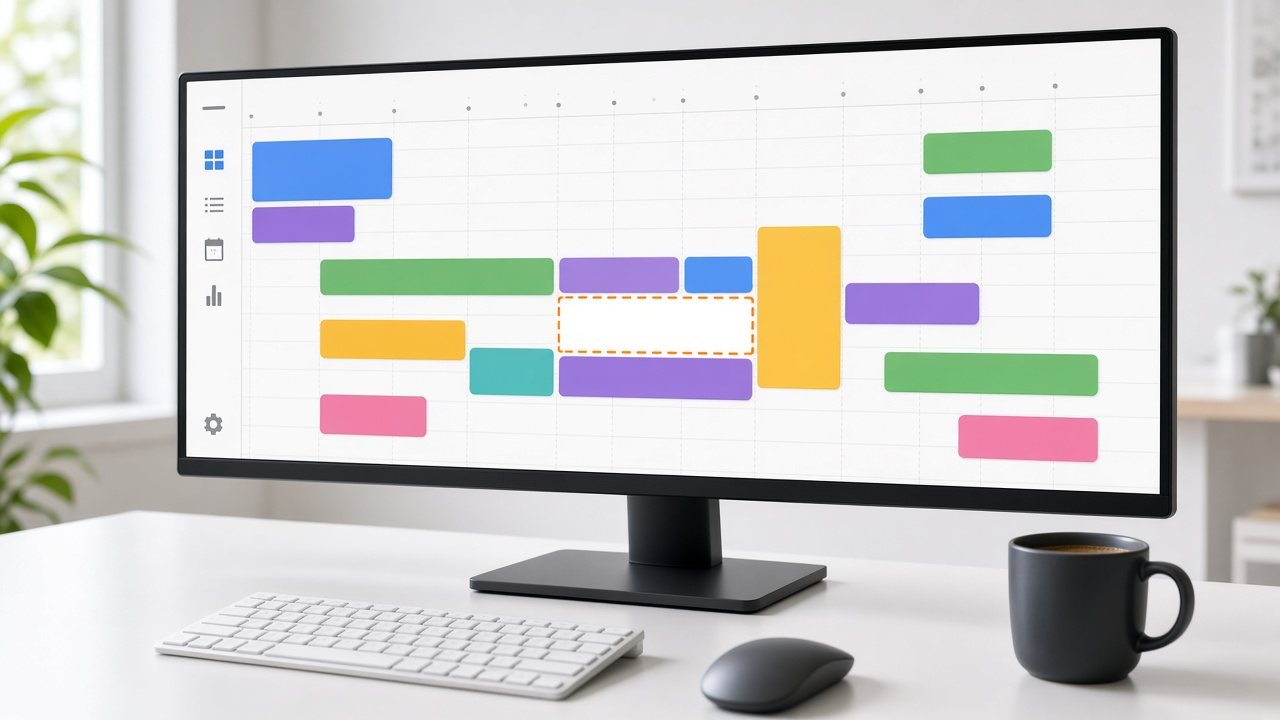
A wide monitor showing a weekly planning calendar of colored program blocks with one gap outlined in orange
Build · Line-up

The whole week as a strip of time

Omni Line-Up Planner shows every channel as a timeline. Drag items in, and the system works out order, durations and the gaps that still need filling.

  • You will leave with
  • A weekly template you can reuse
  • A clear view of gaps and overruns
  • Guide data for apps and partners
01

From idea to a running line-up

Scheduling is where editorial judgment meets the clock. A good tool shows gaps, overruns and repeat patterns at a glance and gets out of the way when something has to change quickly.

  • Templates

    Save a typical weekday, weekend or event day, apply it across weeks and adjust only the exceptions.

  • Your channel's own day

    Plan to the broadcast day you choose, so late-night programming stays with the schedule it belongs to.

  • Playlist import

    Bring in plans from your existing planning tools. Send a sample of your usual file and we will confirm how it would load.

  • Guide data

    Publish what is on now and next, so apps and partners can show a program guide.

  • Teams and locking

    Several people can plan at once, and a locked day cannot be changed by accident.

  • Backup loop

    Keep a protective playlist ready for each channel, to play when something goes wrong.

02

A weekly planning routine

  1. Apply the template

    Start so the core programs are already in place.

  2. Add the exceptions

    Drop in premieres, live events and one-off specials.

  3. Check the gaps

    Cover unfilled time from the library or with fillers.

  4. Lock and publish

    Lock the days you are happy with and publish the guide data.

03

Many channels, same crew

Looking after several channels works best with a shared library, repeatable templates, defined roles and one view of everything. Plan one channel or many from the same account, with the number scoped to your service.

A tidy, well-ordered line-up also shortens each new app or partner launch, because the same channel can be handed to a new destination without rebuilding it.

Time zones
Schedules are planned in the time zone you choose for each channel.
Roles
Different permissions for people who plan, approve and only need to look.
Live shows
Booked into the line-up like any other item, with a fallback if the source is late.
Channels
Scoped with you; see starting points.
04

Questions to settle

Can I schedule live broadcasts?

Yes. Live shows are booked into the line-up and the channel joins them on cue, then returns to the schedule. See live cut-ins.

How far ahead can I plan?

As far as your programming needs. Many teams plan a week at a time and keep seasonal blocks further out; tell us your usual rhythm and we will confirm the fit.