
Live & Events
Simulated Live
Air a finished recording at a set time, with chat and hosts live, so the audience gets a shared appointment instead of a lonely replay.
The challenge
Why this matters
A polished recording is safer than a live show, but a replay posted to a library has no urgency. You want the safety of a finished cut and the energy of a premiere.
What it is
Simulated Live in plain words
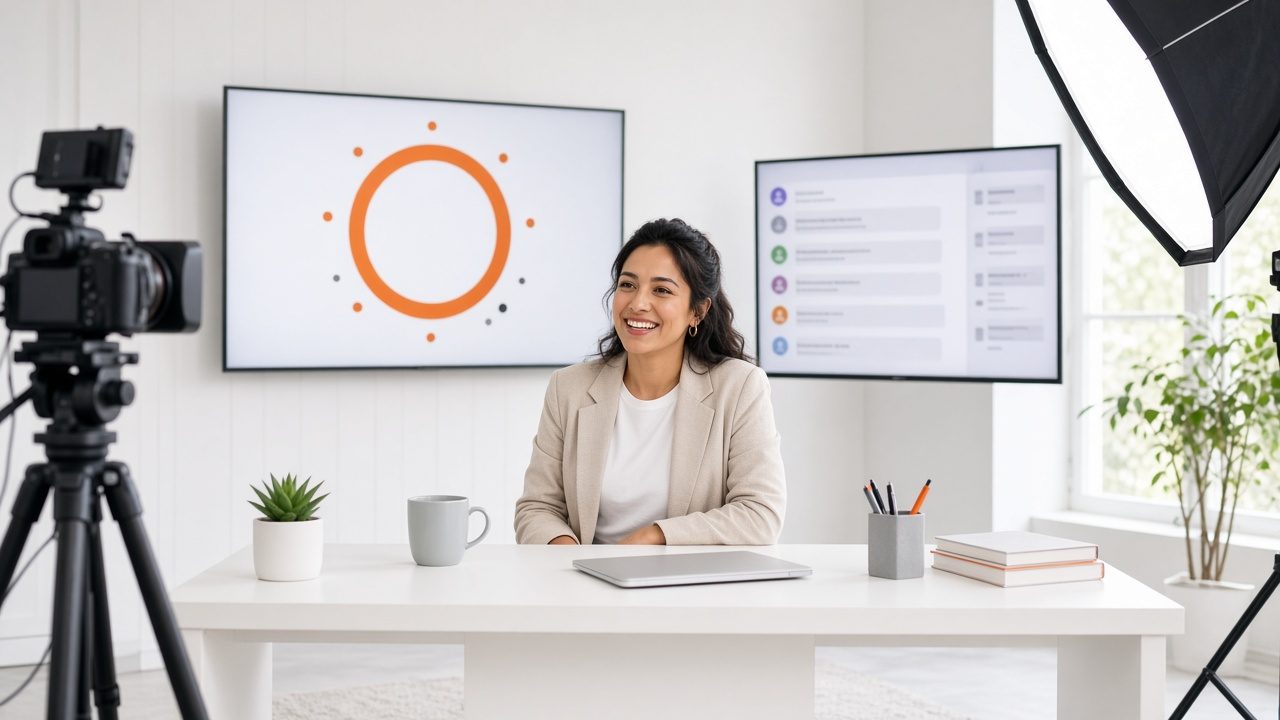
Simulated Live airs a prepared recording at a time you choose. Chat, questions and calls to action stay open, and live hosts welcome viewers and answer them while the program plays. Viewers join the same moment together, and the recording stays in the library afterward.
You review the recording before it airs, pick the airing time and who hosts, and follow up with the people who responded.
Benefits
What you get
A premiere effect
A scheduled start gives viewers a reason to show up together, with a countdown and a host to welcome them.
No live risk
The program is already finished, so there are no on-camera slips or dropped guests. Your team can focus on the audience.
Live interaction
Hosts answer questions and guide viewers while the program plays, in the same chat and Q&A tools used for live events.
Reuse the same file
The same recording airs again at other times or in other languages without a new production.
How it works
Simple to start, simple to run
Review the recording
Check the cut, the audio and the end card before it airs.
Pick the time and hosts
Set the airing time and assign hosts and moderators.
Host the airing
Welcome viewers, answer questions, and point to next steps while the program plays.
Follow up
See who watched and responded, and send the next message.
Details
What is included
Scheduling
- Fixed or repeated air times
- Countdown page
- Time-zone-aware reminders
Interaction
- Live chat and Q&A during the airing
- Host and moderator roles
- Polls and calls to action
Afterward
- Recording stays in the library
- Re-air in other time zones or languages
- Reports on attendance
Illustrative scenario
A training company airs a new course lesson at 10 a.m. in three regions on the same day. A trainer in each region hosts the chat while the same recording plays.
One team from camera to viewer
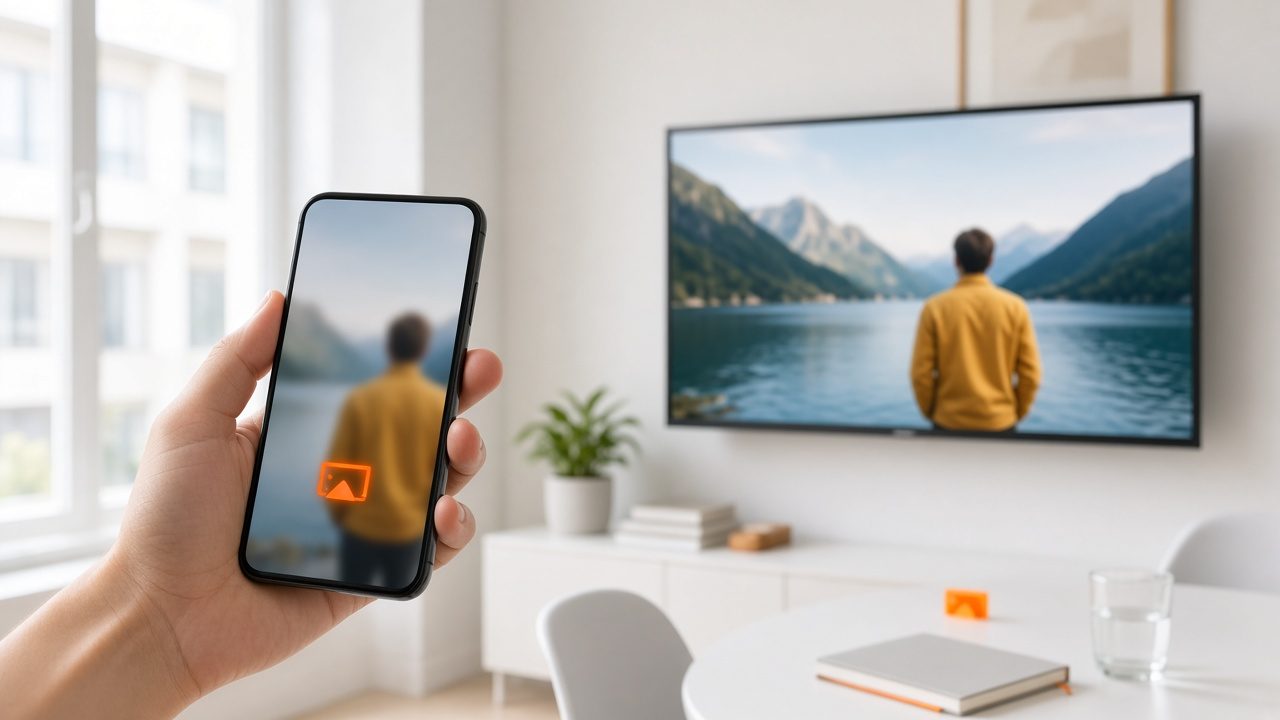
Capture, delivery, recording and reports come from one company, so there is nobody to chase when the event is live.
Questions
Common questions
Is it clear to viewers that it is a recording?
Your team decides how to label it. Many organizations label the program a premiere or a scheduled showing and tell viewers a host is live in the chat.
Can I air the same program more than once?
Yes. Repeat airings can be scheduled for other times and regions.
Does it need a live encoder?
No. The program plays from your library, so no live video source is needed.
Related
Works well with
Live Streaming
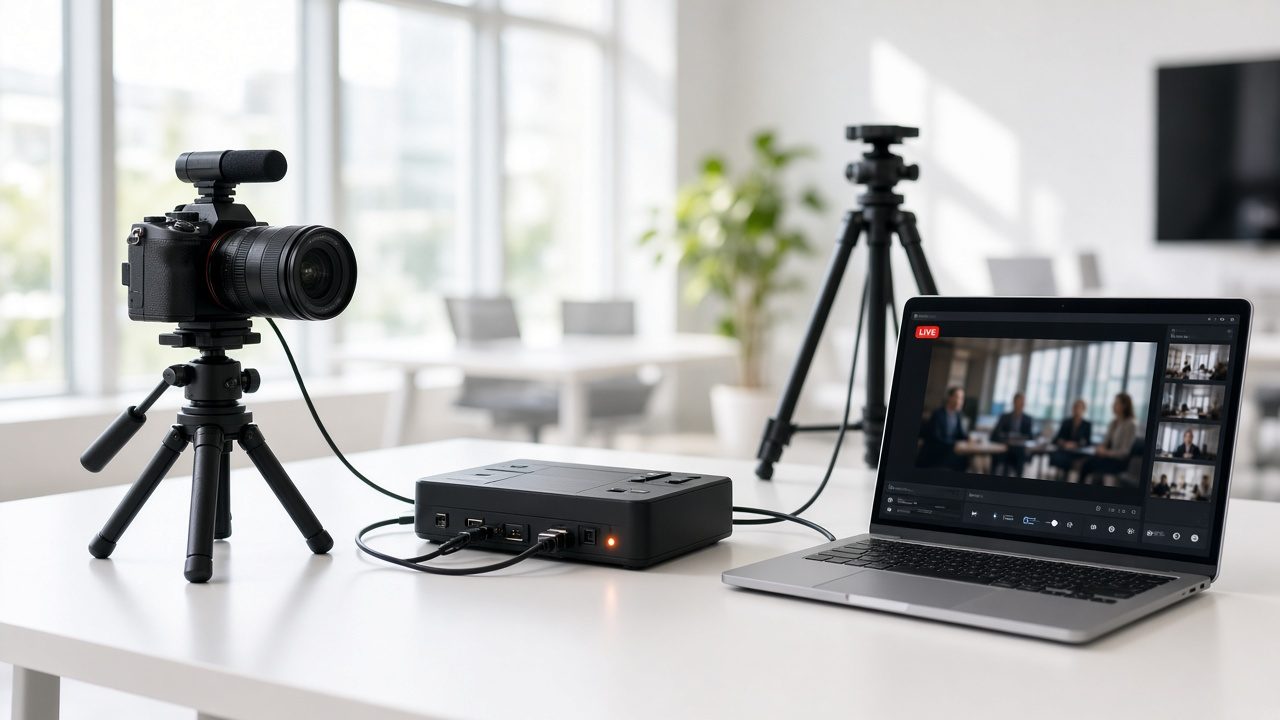
Live video for concerts, conferences, hearings and games, delivered to viewers on any device.
Learn more →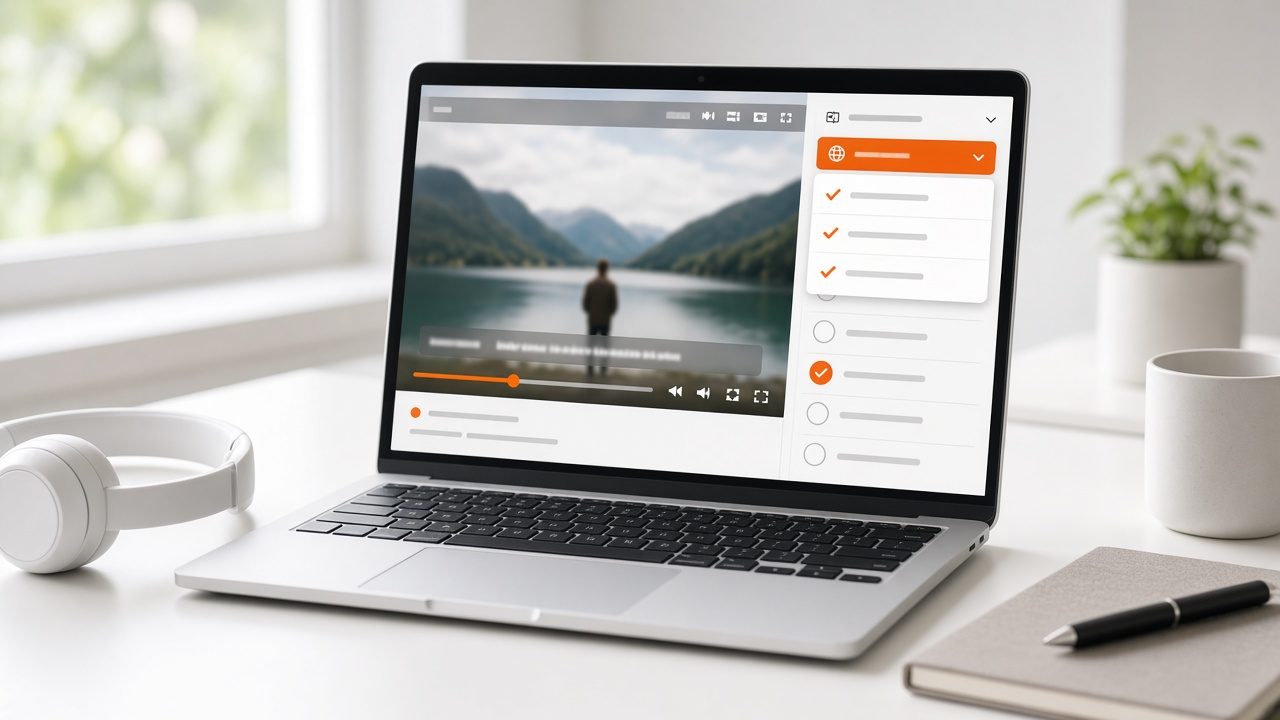
Multilingual On-Demand & Courses
Subtitles, text and dubbing for recorded programs and course libraries.
Learn more →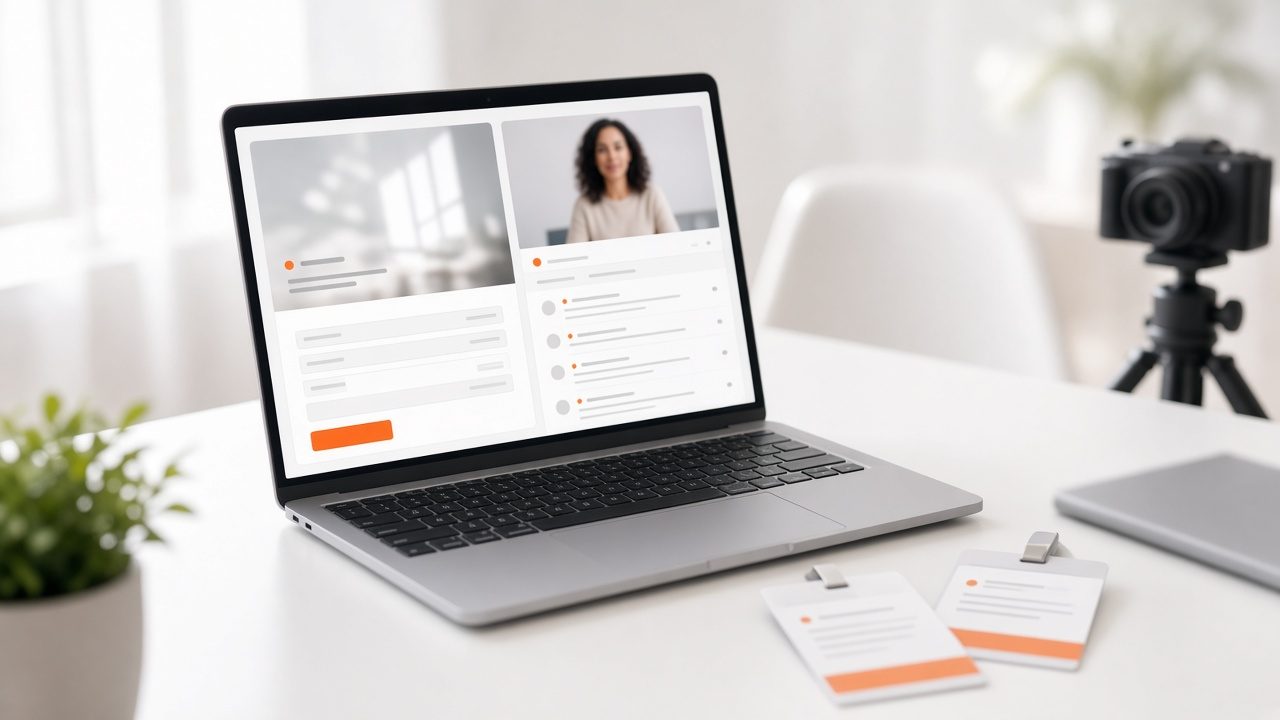
Events & Registration
Event pages, registration, live Q&A and replay in one flow.
Learn more →Ready for Simulated Live?
Tell us about your project and we will reply with a clear plan.