Live & EventsLive & Events overviewLive StreamingBrowser StudioSimulated LiveVenue ConnectivityStream MonitoringContent Delivery NetworkMobile StreamingSatellite Rebroadcast
LanguagesLanguages overviewOmniTranslate LiveLanguages overviewCaptions & TranscriptsLive Event LanguagesMultilingual On-Demand & CoursesField & Remote ReportsMultilingual Discussion RoomsMultilingual AnnouncementsVoice-Matched DubbingDigital PresenterGlossary & Quality Review
Create & EditCreate & Edit overviewCreate & Edit overviewSmart ClipsRecap StudioChapters & Companion Content
Library & ScreensLibrary & Screens overviewLibrary & Screens overviewEvery ScreenVideo on DemandCollections & CoursesArchive MigrationConnected TV & IPTVBranded Mobile AppsWeb Portal & PlayerSocial ReachAudio & PodcastsCast to ScreenDone-for-You Apps
24/7 TV24/7 TV overview24/7 TV NetworkPlanBuildRunGrowWho it is forChannel examplesTalk to the teamTV Carriage & Partner Delivery
RadioRadio overviewRadio StreamingMusic Licensing & RoyaltiesAudio & Podcasts
Engage & MonetizeEngage & Monetize overviewEngage & Monetize overviewAdvertising & SponsorshipPayments, Fundraising & PaywallsLive Chat & Q&AViewer Support DeskCommunities & GroupsEvents & RegistrationCrew SchedulingAttendee Check-in
InsightsInsights overviewInsights & Control overviewAudience AnalyticsAccess & Security
SolutionsSolutions overviewSolutions overviewGovernment & Public SectorEntertainment & MediaBusiness & EnterpriseAssociations & NonprofitsSportsNews & BroadcastEducation & EventsHouses of WorshipBeyond Social-Only StreamingSwitching Streaming Platforms
AI DevelopmentAI Development overviewReadiness & RoadmapApplications Built to OrderGenerative Content StudioWorkflow AgentsVideo & Audio UnderstandingSpeech & Language SystemsData FoundationsModel Operations & OversightArchive Search EngineHighlight FinderService AssistantRecords IntelligenceAudience ForecastingReview & Compliance ChecksAI Development overviewGovernment & Public SectorMedia & EntertainmentSports & Live EventsBusiness & EnterpriseEducation & TrainingAssociations & NonprofitsNews & BroadcastAI InsightsHow we workResponsible AI
General AIGeneral AI overviewAI Strategy & AdvisoryCustom AI ApplicationsGenerative AI & Language ModelsAI Agents & AssistantsBack-Office AutomationMachine Learning & ForecastingImage Recognition & InspectionLanguage & Document IntelligenceData Pipelines & AI ReadinessConnecting AI to Your SystemsProduction Rollout & SupportAI Security & GovernanceAI for Your IndustryWays to Work With Us
CompanyCompany overviewWhy Omni Media CastAboutPlans & ways to startResourcesCompare approachesFAQPlain-Word GlossaryTrust & SecuritySupportContact
24/7 TV
  1. 1Plan
  2. 2Build
  3. 3Run
  4. 4Grow
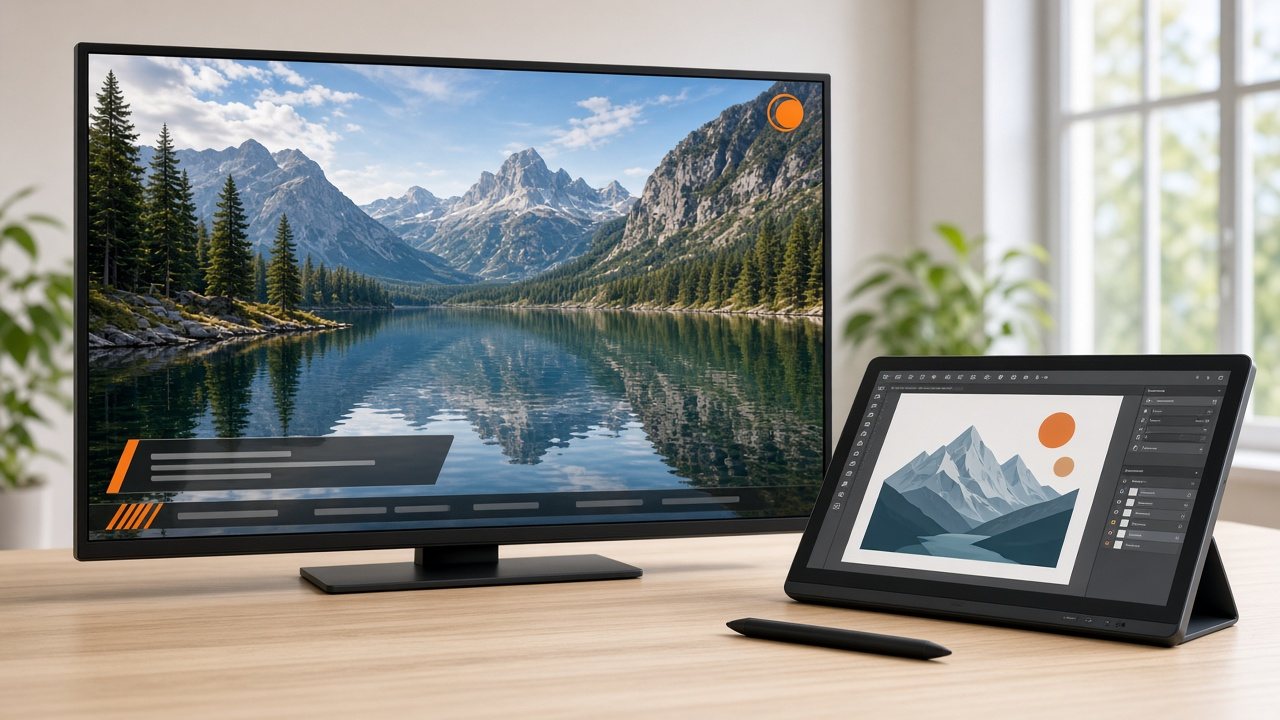
A television showing a mountain lake with a small orange logo, a name bar and a ticker strip, beside a designer's tablet
Build · Brand

Your identity on every frame

Omni Brand Overlay gives the channel a consistent look with a logo, timed notices and sponsor graphics, set up once and shown wherever the stream is watched.

  • You will leave with
  • A logo and notices applied at channel level
  • Graphics that follow the line-up
  • One file reused on several channels
01

Branding at channel level

Burning a logo into every file before upload is slow and hard to undo. Channel-level graphics are added when the program plays, so a new logo, a seasonal look or an urgent notice can change everywhere at once.

One file can also appear on several channels, each with its own identity, without keeping several rendered copies.

02

Graphic elements

  • Channel logo

    A permanent mark in the corner you choose, with transparency and timing settings.

  • Lower thirds and banners

    Short bars with names, titles or program details that appear on cue.

  • Tickers and notices

    Scrolling or static text for headlines, weather, community notices or urgent messages.

  • Promotional overlays

    Short animated sequences that tell viewers what is on next.

03

Plan graphics like programs

Graphics can follow line-up events: a banner appears as a program opens and removes itself when it closes. Teams who work with sponsors can attach a sponsor graphic to a block of programming and know it will run.

  1. Upload artwork

    Transparent images or short clips from your design team.

  2. Place it

    Set corner, size, transparency and timing.

  3. Attach it

    Tie it to an event, or run it continuously.

  4. Review

    Look at the result before it goes on air.

Because graphics are applied before the stream is prepared, the finished stream is encoded once, at the quality you choose.

04

Questions to settle

Can I change the logo without re-uploading programs?

Yes. Replace the artwork once and the change applies to all future playout.

Can graphics differ by channel?

Yes. Each channel has its own graphics set.

Which artwork formats work?

Send us your artwork and we will confirm it before launch.