
Live & EventsLive & Events overviewLive StreamingBrowser StudioSimulated LiveVenue ConnectivityStream MonitoringContent Delivery NetworkMobile StreamingSatellite Rebroadcast
LanguagesLanguages overviewOmniTranslate LiveLanguages overviewCaptions & TranscriptsLive Event LanguagesMultilingual On-Demand & CoursesField & Remote ReportsMultilingual Discussion RoomsMultilingual AnnouncementsVoice-Matched DubbingDigital PresenterGlossary & Quality Review
Create & EditCreate & Edit overviewCreate & Edit overviewSmart ClipsRecap StudioChapters & Companion Content
Library & ScreensLibrary & Screens overviewLibrary & Screens overviewEvery ScreenVideo on DemandCollections & CoursesArchive MigrationConnected TV & IPTVBranded Mobile AppsWeb Portal & PlayerSocial ReachAudio & PodcastsCast to ScreenDone-for-You Apps
24/7 TV24/7 TV overview24/7 TV NetworkPlanBuildRunGrowWho it is forChannel examplesTalk to the teamTV Carriage & Partner Delivery
RadioRadio overviewRadio StreamingMusic Licensing & RoyaltiesAudio & Podcasts
Engage & MonetizeEngage & Monetize overviewEngage & Monetize overviewAdvertising & SponsorshipPayments, Fundraising & PaywallsLive Chat & Q&AViewer Support DeskCommunities & GroupsEvents & RegistrationCrew SchedulingAttendee Check-in
InsightsInsights overviewInsights & Control overviewAudience AnalyticsAccess & Security
SolutionsSolutions overviewSolutions overviewGovernment & Public SectorEntertainment & MediaBusiness & EnterpriseAssociations & NonprofitsSportsNews & BroadcastEducation & EventsHouses of WorshipBeyond Social-Only StreamingSwitching Streaming Platforms
AI DevelopmentAI Development overviewReadiness & RoadmapApplications Built to OrderGenerative Content StudioWorkflow AgentsVideo & Audio UnderstandingSpeech & Language SystemsData FoundationsModel Operations & OversightArchive Search EngineHighlight FinderService AssistantRecords IntelligenceAudience ForecastingReview & Compliance ChecksAI Development overviewGovernment & Public SectorMedia & EntertainmentSports & Live EventsBusiness & EnterpriseEducation & TrainingAssociations & NonprofitsNews & BroadcastAI InsightsHow we workResponsible AI
General AIGeneral AI overviewAI Strategy & AdvisoryCustom AI ApplicationsGenerative AI & Language ModelsAI Agents & AssistantsBack-Office AutomationMachine Learning & ForecastingImage Recognition & InspectionLanguage & Document IntelligenceData Pipelines & AI ReadinessConnecting AI to Your SystemsProduction Rollout & SupportAI Security & GovernanceAI for Your IndustryWays to Work With Us
CompanyCompany overviewWhy Omni Media CastAboutPlans & ways to startResourcesCompare approachesFAQPlain-Word GlossaryTrust & SecuritySupportContact
24/7 TV
  1. 1Plan
  2. 2Build
  3. 3Run
  4. 4Grow
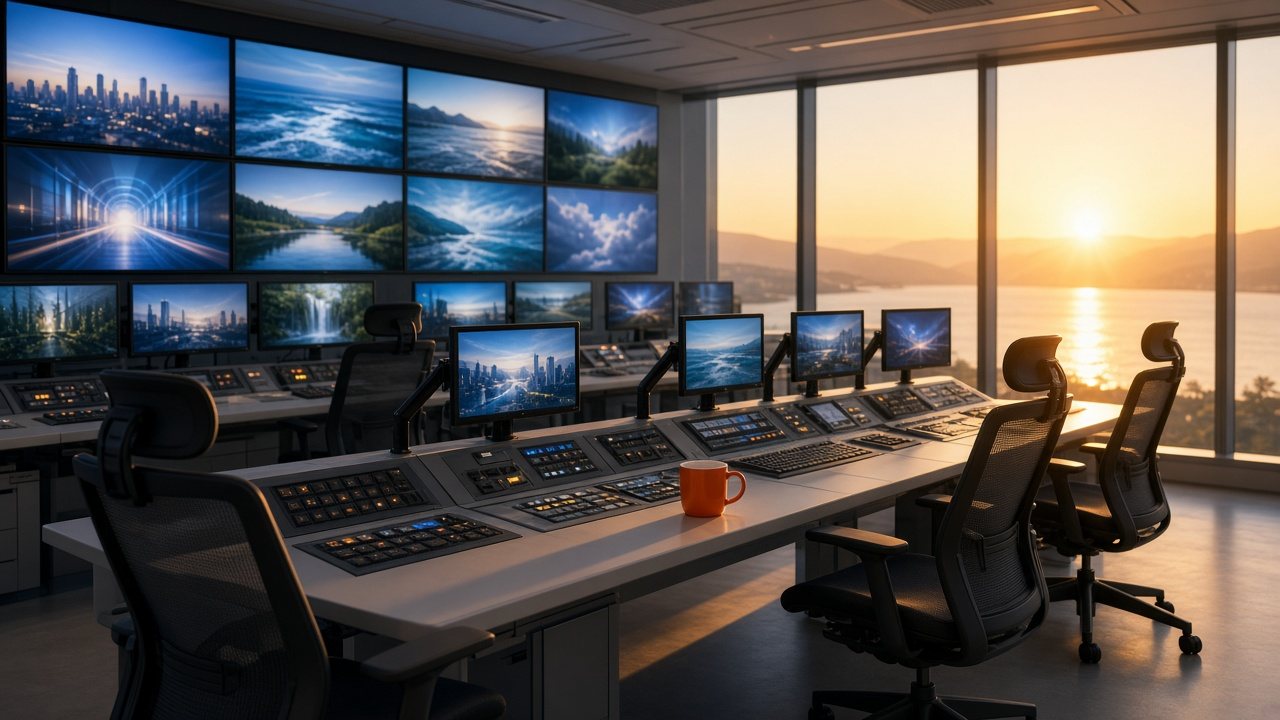
A calm control room at sunrise with rows of screens playing channel previews and an orange mug on the desk
Run · Automation

The schedule plays itself

Load the plan once and Omni Auto-Run handles every transition, joins live shows on cue and covers a failed source with a safety loop.

  • You will leave with
  • Items that follow one another with no gaps
  • Live shows that join and leave on cue
  • A fallback that plays if a source fails
01

Why automate a channel?

A television channel never takes a day off, but the people running it must. Cueing by hand can cover a short live afternoon, yet it breaks down across nights, weekends and holidays. Automation moves the repetitive work to software so people can spend their time on programming decisions.

The schedule is the instruction set. Each item has a start time, a source and a duration, and the platform handles every transition, including the awkward moment when a live broadcast runs long or ends early.

02

What it covers

  • Unattended running

    Programs, ads, promos and station idents run in order, with the next item prepared ahead of time.

  • Live in the schedule

    Book a live broadcast into the line-up and the channel joins it on cue, then returns to recorded programming.

  • Layered graphics

    Place logos, banners and short clips over the main program at set moments without interrupting it.

  • Fallback content

    If a source fails, a protective loop or slate plays so viewers still see a channel, and your team is alerted.

03

When a source fails

  1. Gap detected

    A file is missing or a feed has dropped.

  2. Safety loop plays

    The fallback you chose takes over.

  3. Your team is alerted

    So the cause can be found.

  4. Back to schedule

    The channel resumes at the right place.

04

Designed for small teams

Many channels are run by one or two people, or by a volunteer crew. Automation lets them publish a full week of programming in an afternoon, then check on it from a laptop. Because the channel is hosted for you, nobody has to maintain a server or travel to a facility to restart one.

  • Browser-based control from any location
  • Repeat blocks, daily patterns and one-off special events
  • A clear view of what is playing now and what is next

Automation handles the routine; a person still decides what goes on air.

05

Questions to settle

Does someone need to watch the channel all day?

No. Once a schedule is loaded the channel plays on its own. We suggest that someone checks alerts and spot-checks the output.

Can I take over by hand?

Yes. You can edit the running schedule or switch to a live source at any time.

What happens if a program file is missing?

The platform plays the fallback item you chose and raises an alert, so the channel stays on air while you fix the gap.