
Live & Events
Browser Studio
A production room that runs in the browser: invite guests with a link, build scenes and send a polished show straight to your stream.
The challenge
Why this matters
Remote interviews, panels and town halls shouldn't need a truck or a rented studio. You want guests to join from anywhere, and you want the result to look produced, not like a video call.
What it is
Browser Studio in plain words
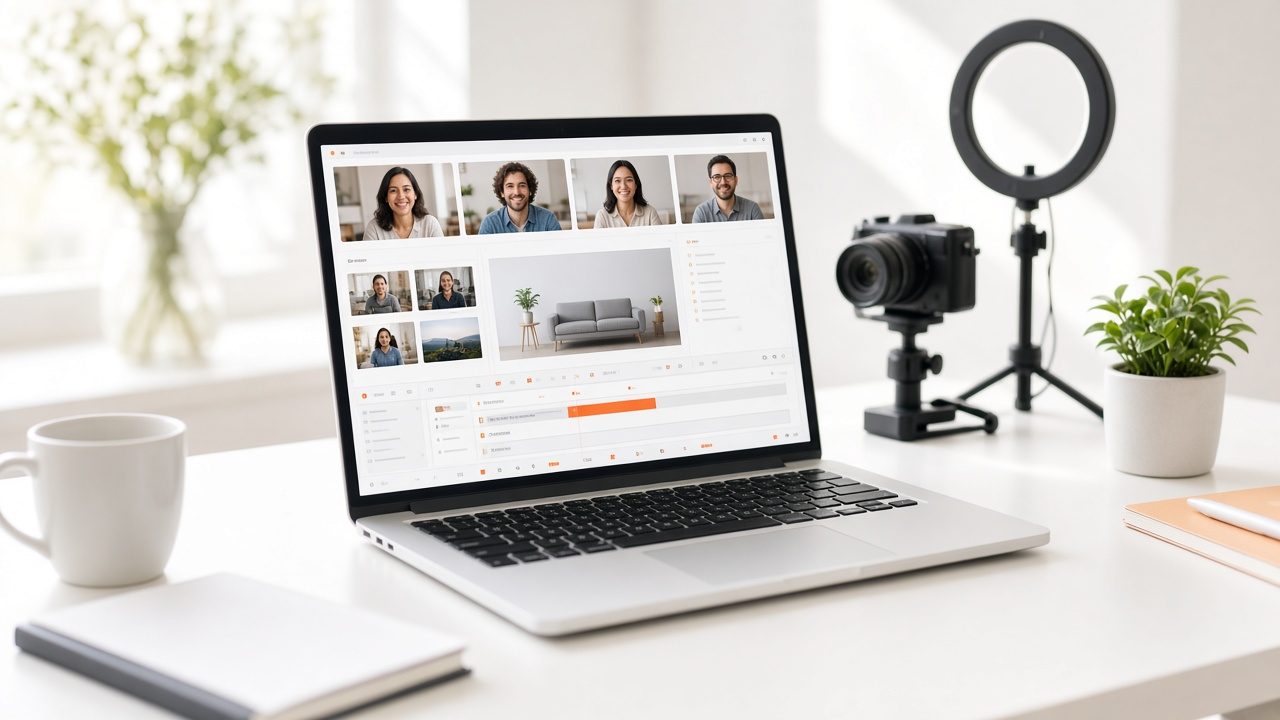
Browser Studio is a production room you open in a web browser. Guests join from an invite link. A producer sets up scenes, titles and countdowns, brings audience questions on screen and sends the finished program to your live stream.
The session is recorded and sent to your video library, ready for clips, captions and translation.
Benefits
What you get
Guests join with a link
Send an invitation and guests enter from their own browser after a quick camera and sound check. No software to install for most guests.
A produced look
Scenes for a host alone, a conversation, slides or a closing card. Titles and countdowns keep the show on time and on brand.
Audience questions on screen
Pull a viewer's question into the picture so the audience hears it answered, and so remote and in-room attendees stay part of the same conversation.
Recorded for reuse
Every session is saved to your library. The same recording feeds clips, captions, and translated versions afterward.
How it works
Simple to start, simple to run
Invite your guests
Share the link and check camera and sound before you go on air.
Build the scenes
Set up host-only, conversation, slides and closing layouts in advance.
Direct the show
Switch scenes, run titles, and bring questions on screen while the stream runs.
Save and reuse
Send the recording to your library for clips, captions and languages.
Details
What is included
Production
- Guest invitations by link
- Scene layouts and titles
- Countdowns and run-of-show timing
- Screen and slide sharing
Audience
- On-screen audience questions
- Chat and polls where enabled
- Output to your live watch page or other destinations
After the show
- Automatic recording to your library
- Clips and highlights
- Captions and translated versions
Illustrative scenario
An industry association hosts a quarterly town hall. Four speakers join from their offices, a producer runs scenes from a laptop, and members submit questions that appear on screen before the recording is posted for members who could not attend.

One team from camera to viewer
Capture, delivery, recording and reports come from one company, so there is nobody to chase when the event is live.
Questions
Common questions
Do guests need to install anything?
For most guests, no. They open the invitation link in a supported browser, allow the camera and microphone, and join.
Can I stream to more than one place?
Yes. The output can go to your own watch page and to other destinations your team chooses.
Is the show recorded?
Yes. Recordings go to your video library automatically.
Related
Works well with
Live Streaming
Live video for concerts, conferences, hearings and games, delivered to viewers on any device.
Learn more →
Smart Clips
Suggested highlights, reviewed by your editor, in horizontal, vertical and audio-only cuts.
Learn more →
Captions & Transcripts
Live captions and reviewed transcripts that stay attached to the video.
Learn more →Ready for Browser Studio?
Tell us about your project and we will reply with a clear plan.