Live & EventsLive & Events overviewLive StreamingBrowser StudioSimulated LiveVenue ConnectivityStream MonitoringContent Delivery NetworkMobile StreamingSatellite Rebroadcast
LanguagesLanguages overviewOmniTranslate LiveLanguages overviewCaptions & TranscriptsLive Event LanguagesMultilingual On-Demand & CoursesField & Remote ReportsMultilingual Discussion RoomsMultilingual AnnouncementsVoice-Matched DubbingDigital PresenterGlossary & Quality Review
Create & EditCreate & Edit overviewCreate & Edit overviewSmart ClipsRecap StudioChapters & Companion Content
Library & ScreensLibrary & Screens overviewLibrary & Screens overviewEvery ScreenVideo on DemandCollections & CoursesArchive MigrationConnected TV & IPTVBranded Mobile AppsWeb Portal & PlayerSocial ReachAudio & PodcastsCast to ScreenDone-for-You Apps
24/7 TV24/7 TV overview24/7 TV NetworkPlanBuildRunGrowWho it is forChannel examplesTalk to the teamTV Carriage & Partner Delivery
RadioRadio overviewRadio StreamingMusic Licensing & RoyaltiesAudio & Podcasts
Engage & MonetizeEngage & Monetize overviewEngage & Monetize overviewAdvertising & SponsorshipPayments, Fundraising & PaywallsLive Chat & Q&AViewer Support DeskCommunities & GroupsEvents & RegistrationCrew SchedulingAttendee Check-in
InsightsInsights overviewInsights & Control overviewAudience AnalyticsAccess & Security
SolutionsSolutions overviewSolutions overviewGovernment & Public SectorEntertainment & MediaBusiness & EnterpriseAssociations & NonprofitsSportsNews & BroadcastEducation & EventsHouses of WorshipBeyond Social-Only StreamingSwitching Streaming Platforms
AI DevelopmentAI Development overviewReadiness & RoadmapApplications Built to OrderGenerative Content StudioWorkflow AgentsVideo & Audio UnderstandingSpeech & Language SystemsData FoundationsModel Operations & OversightArchive Search EngineHighlight FinderService AssistantRecords IntelligenceAudience ForecastingReview & Compliance ChecksAI Development overviewGovernment & Public SectorMedia & EntertainmentSports & Live EventsBusiness & EnterpriseEducation & TrainingAssociations & NonprofitsNews & BroadcastAI InsightsHow we workResponsible AI
General AIGeneral AI overviewAI Strategy & AdvisoryCustom AI ApplicationsGenerative AI & Language ModelsAI Agents & AssistantsBack-Office AutomationMachine Learning & ForecastingImage Recognition & InspectionLanguage & Document IntelligenceData Pipelines & AI ReadinessConnecting AI to Your SystemsProduction Rollout & SupportAI Security & GovernanceAI for Your IndustryWays to Work With Us
CompanyCompany overviewWhy Omni Media CastAboutPlans & ways to startResourcesCompare approachesFAQPlain-Word GlossaryTrust & SecuritySupportContact

Create & Edit

Smart Clips

Find the moments in a long program that can stand alone, review them, and publish short clips in the right shapes for every channel.

The challenge

Why this matters

Hours of video contain a few minutes that people will actually share. Finding them by hand takes a day, so most never get posted.

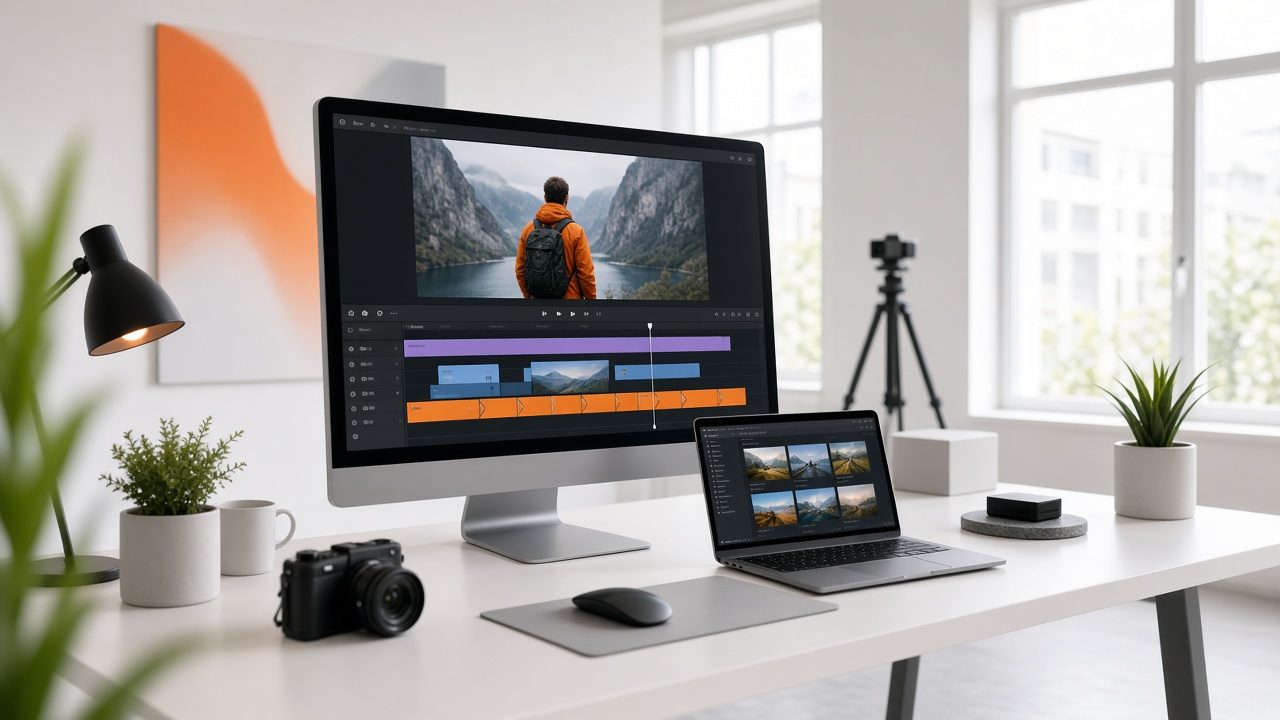
Video editing screen with orange clip markers on a timeline beside a laptop and camera
Smart Clips

What it is

Smart Clips in plain words

Smart Clips suggests moments from a recording that could stand alone. Your editor reviews each one, sets the exact start and end, and approves the final cut. You receive horizontal and vertical versions, audio-only versions, and a link back to the full program.

Benefits

What you get

A shortlist to start from

The tool suggests moments, so editors start from a shortlist, not a blank timeline.

A person decides

Every clip is trimmed and approved by your team before it is posted.

Every shape you need

Horizontal, vertical and audio-only cuts from one source.

Links back to the full video

Each clip points viewers to the full program in your library.

How it works

Simple to start, simple to run

Step 1

Suggest

The tool proposes moments that could stand alone.

Step 2

Edit

Trim, add titles and sound.

Step 3

Approve

Your team accepts, trims or rejects each one.

Step 4

Post and learn

Publish, then see which clips people watch.

Details

What is included

Finding
  • Suggested moments
  • Transcript search
  • Speaker and topic markers
Editing
  • Trim handles
  • Titles and captions
  • Horizontal and vertical crops
Publishing
  • Link to full program
  • Social destinations
  • Audio-only versions

Illustrative scenario

A sports league turns a full match recording into a dozen reviewed highlights that appear on social networks the same evening.

Group of smiling members around a table with laptops and a wall map of chapters

Work from what you already have

Every output starts from a recording in your library, so there is nothing new to shoot.

Request a demo →

Questions

Common questions

Does the tool publish by itself?

No. Your team approves every clip before it is posted.

Can I add captions?

Yes. See Captions & Transcripts.

What formats are produced?

Horizontal, vertical and audio-only.

Ready for Smart Clips?

Tell us about your project and we will reply with a clear plan.