
Live & EventsLive & Events overviewLive StreamingBrowser StudioSimulated LiveVenue ConnectivityStream MonitoringContent Delivery NetworkMobile StreamingSatellite Rebroadcast
LanguagesLanguages overviewOmniTranslate LiveLanguages overviewCaptions & TranscriptsLive Event LanguagesMultilingual On-Demand & CoursesField & Remote ReportsMultilingual Discussion RoomsMultilingual AnnouncementsVoice-Matched DubbingDigital PresenterGlossary & Quality Review
Create & EditCreate & Edit overviewCreate & Edit overviewSmart ClipsRecap StudioChapters & Companion Content
Library & ScreensLibrary & Screens overviewLibrary & Screens overviewEvery ScreenVideo on DemandCollections & CoursesArchive MigrationConnected TV & IPTVBranded Mobile AppsWeb Portal & PlayerSocial ReachAudio & PodcastsCast to ScreenDone-for-You Apps
24/7 TV24/7 TV overview24/7 TV NetworkPlanBuildRunGrowWho it is forChannel examplesTalk to the teamTV Carriage & Partner Delivery
RadioRadio overviewRadio StreamingMusic Licensing & RoyaltiesAudio & Podcasts
Engage & MonetizeEngage & Monetize overviewEngage & Monetize overviewAdvertising & SponsorshipPayments, Fundraising & PaywallsLive Chat & Q&AViewer Support DeskCommunities & GroupsEvents & RegistrationCrew SchedulingAttendee Check-in
InsightsInsights overviewInsights & Control overviewAudience AnalyticsAccess & Security
SolutionsSolutions overviewSolutions overviewGovernment & Public SectorEntertainment & MediaBusiness & EnterpriseAssociations & NonprofitsSportsNews & BroadcastEducation & EventsHouses of WorshipBeyond Social-Only StreamingSwitching Streaming Platforms
AI DevelopmentAI Development overviewReadiness & RoadmapApplications Built to OrderGenerative Content StudioWorkflow AgentsVideo & Audio UnderstandingSpeech & Language SystemsData FoundationsModel Operations & OversightArchive Search EngineHighlight FinderService AssistantRecords IntelligenceAudience ForecastingReview & Compliance ChecksAI Development overviewGovernment & Public SectorMedia & EntertainmentSports & Live EventsBusiness & EnterpriseEducation & TrainingAssociations & NonprofitsNews & BroadcastAI InsightsHow we workResponsible AI
General AIGeneral AI overviewAI Strategy & AdvisoryCustom AI ApplicationsGenerative AI & Language ModelsAI Agents & AssistantsBack-Office AutomationMachine Learning & ForecastingImage Recognition & InspectionLanguage & Document IntelligenceData Pipelines & AI ReadinessConnecting AI to Your SystemsProduction Rollout & SupportAI Security & GovernanceAI for Your IndustryWays to Work With Us
CompanyCompany overviewWhy Omni Media CastAboutPlans & ways to startResourcesCompare approachesFAQPlain-Word GlossaryTrust & SecuritySupportContact
24/7 TV
  1. 1Plan
  2. 2Build
  3. 3Run
  4. 4Grow
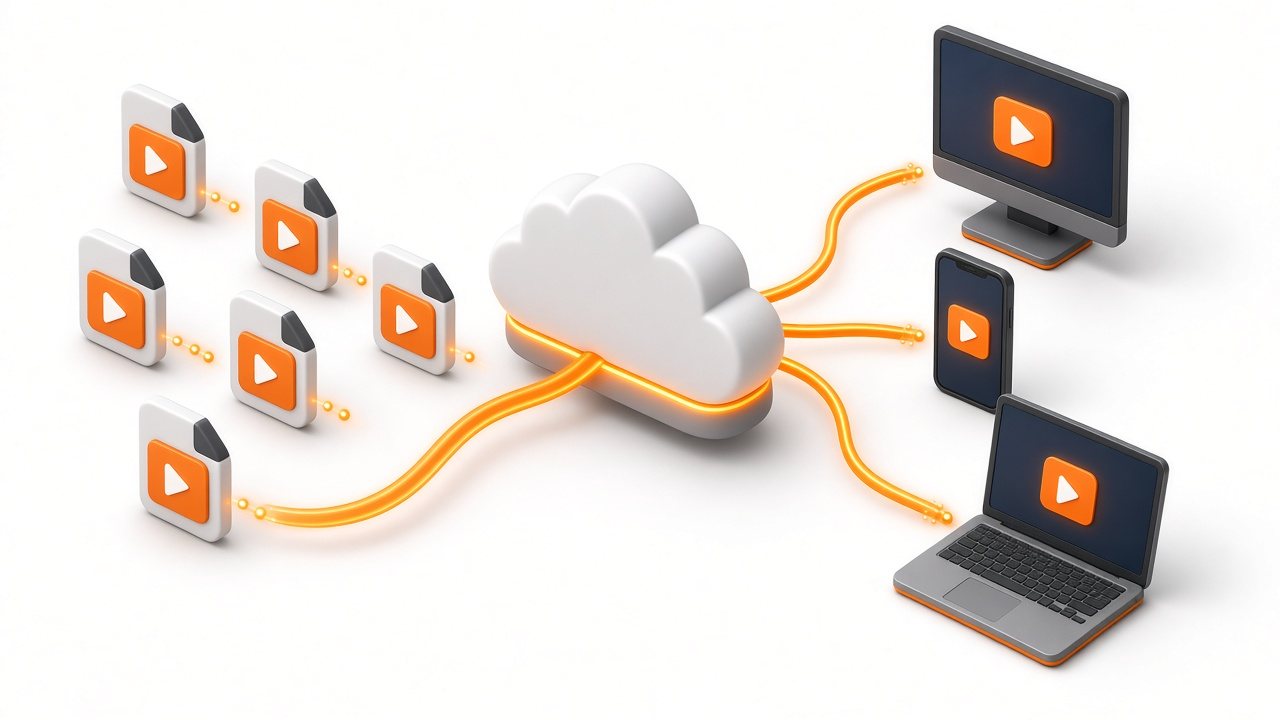
Video file icons flowing along glowing orange lines into a cloud, then out to a TV, a phone and a laptop
Plan · Basics

How a cloud channel works, in plain words

A channel is a schedule with a brand and a continuous output. Here is what happens between a file on your desk and a picture on a viewer's screen.

  • You will leave with
  • The words people use, explained once
  • The path from file to screen
  • How a channel differs from a live stream
01

The short definition

A cloud channel has a schedule, branding and an output that never stops, like any television channel. What differs is where it lives. Your media sits in cloud storage, the planner and the output engine run on cloud servers, and the finished stream travels to viewers over a content delivery network.

You steer everything from a web page. No playback machinery is needed on your side, and the service is run for you by people, not left as a kit to assemble.

02

From file to screen

Every channel, large or small, follows the same path. What changes is how much of it you handle yourself.

  1. Arrive

    Files are uploaded in the browser, or a live feed is connected.

  2. Check

    Each item is inspected and marked ready or flagged.

  3. Arrange

    Ready items are placed on the line-up, with live slots reserved.

  4. Dress

    Logo, notices and sponsor graphics are applied at channel level.

  5. Deliver

    The stream is prepared at several quality levels and sent to viewers from a nearby point.

Each step has its own page in Build and Run.

03

How it differs from what you already know

FormatWhat viewers getWho keeps it going
Live streamOne event at a set timeA production crew, for that event
Video on demandA catalog where each viewer picks a titleNobody, once the files are published
24/7 channelA schedule they can tune in to at any hourA schedule plus a service that plays it
Equipment you ownThe same channel, from your own machine roomYour engineers, spare parts and floor space

Many organizations use all three first formats together. The live cut-ins page shows how a live event slots into a channel.

04

Plain words, one line each

Line-up
The plan for what plays when.
Intake
The step where each file or feed is checked.
Fallback
What viewers see if a source fails.
Overlay
Logos, banners and tickers laid over the picture.
Adaptive streaming
The player picks the best quality the connection can carry.
Guide data
The list of what is on now and next, for apps and partners.
05

Questions people bring

Where is the channel hosted?

On managed cloud infrastructure that we run. If you have requirements about locations, tell us and we will confirm them when we scope your service.

Can viewers watch on TV sets?

Yes, through Roku and IPTV services and connected-TV apps. See Reach more screens.

How do I try it?

Ask us to show you a channel running. We will build the example around content like yours.